# Embed API
## Overview
The Embed API enables you to seamlessly integrate Docue's document-building interface into your own platform, offering your users a smooth document creation experience - entirely within your branded environment.
**Please note that this is a separate product from Docue.com platform.** If you are a user of Docue.com and are interested in integrating it into your system, please visit our [Platform API Documentation](https://developers.docue.com/platform-api). The Embed API is primarily designed for system providers or resellers looking to integrate Docue's document-building features into their existing products.
### Example implementation
Example implementation can be found at https://example-embeddable-builder.vercel.app. It demonstrates example flows from the end user's perspective on how the Embed API works.
### Prerequisites
To use this API, you need an **API key**. You can generate **sandbox** and **production** API keys in the customer portal at
https://api.builder.docue.com/customer.
Sandbox and production API keys operate within the same API. All created resources are automatically isolated into separate environments. You cannot access production data using a sandbox API key or vice versa. Using a sandbox API key does not count toward your account limits and does not incur any costs.
If you do not have access to the customer portal yet, please contact our customer support at [support@docue.com](mailto:support@docue.com).
## Guide
The core of the Embed API is the Builder. The Builder is a hosted UI to which you redirect your end-users. To start using the Builder, you need a template. You can allow your end-users to choose a template using our hosted Template Browser, or you can create your own customized template browser UI using our API.
> **What is template?**
Template is our proprietary format for defining a set of questions and logic to generate highly customizable and trustworthy legal documents. Each template belongs to one or more jurisdictions (usually just one as legal requirements differ across them), and can be available in multiple languages. For example, the Finnish Employment Agreement template is available in three languages: Finnish, English, and Swedish. The end-user can choose which language version they want to draft.
As part of your account setup, we can choose which templates are available via the API and via the Template Browser.
### Template Browser
To use the Template Browser, you must create a new browser session. Then, redirect your end-user to the provided URL. Once the end-user selects their template, they will be redirected back to the return URL you provided. In most cases, you will then immediately start a new **Builder session** using the provided data and redirect the user back to our UI.
```mermaid
sequenceDiagram
Integrator ->> Docue API: POST /api/browser/sessions
Docue API ->> Integrator: Redirect url and session id
Integrator ->> Docue UI: Redirect user to Template Browser
Docue UI ->> Docue UI: User chooses the template
Docue UI ->> Integrator: Redirect to provided return url with template id + language
```
### Builder
To use the Builder, you must create a new builder session. Then, redirect your end user to the provided URL. Once the end user completes the document, they will be redirected back to the return URL you provided. After that, you can fetch the completed PDF and metadata, including the list of signees, using the API.
```mermaid
sequenceDiagram
Integrator ->> Docue API: POST /api/builder/sessions
Docue API ->> Integrator: Redirect url and session id
Integrator ->> Docue UI: Redirect user to builder
activate Docue UI
Docue UI ->> Docue UI: User updates the document
Docue UI ->> Docue UI: User finalizes the document
Docue UI ->> Integrator: Redirect to return url
deactivate Docue UI
Integrator ->> Docue API: Request PDF + metadata
Docue API ->> Integrator: PDF + metadata
```
Once the drafting UI redirects back to your service you can manage the document lifecycle via the Builder endpoints:
- `PATCH /api/builder/sessions/{session_id}` to update builder session settings (for example, trial mode configuration).
- `GET /api/builder/sessions/{session_id}/contract` to fetch the latest contract state.
- `POST /api/builder/sessions/{session_id}/contract/finalize` to lock the document when it is ready.
- `POST /api/builder/sessions/{session_id}/contract/unfinalize` to revert a finalized document back to an editable state.
- `GET /api/builder/sessions/{session_id}/html` or `GET /api/builder/sessions/{session_id}/pdf` to retrieve the rendered output.
- `GET /api/builder/sessions/{session_id}/export` to export session data as ZIP.
- `POST /api/builder/sessions/import` to import an exported ZIP and create a new session.
### Trial mode
Use trial mode when you want users to try drafting before they pay, and then direct them to your pricing/upgrade page.
How to use:
1. Create a builder session with a `trial` object in `POST /api/builder/sessions` ([endpoint docs](/embed-api/openapi/builder/createbuildersession)).
2. Set `cta_url` to your pricing/upgrade URL. All trial CTAs use this URL.
3. After purchase, patch the existing session with `trial: null` via `PATCH /api/builder/sessions/{session_id}` so the end-user can continue and finalize the same started document.
More information about trial parameters can be found in the
[Create a new builder session](/embed-api/openapi/builder/createbuildersession) endpoint description.
```json
{
"trial": {
"heading_text": "Free trial - Upgrade to unlock full preview, downloads, and e-signing.",
"heading_cta_text": "Explore plans",
"preview_text": "Unlock full preview",
"finalize_title": "Finish and use your document",
"finalize_content": "Your document is ready.
Upgrade to:
- View the full document
- Download it as a PDF
- Send it for signing
",
"finalize_cta_text": "Explore plans",
"cta_url": "https://yourapp.com/plans"
}
}
```
When `trial` is enabled, the session cannot be finalized with the normal finalize endpoint.
You can see Trial mode in the [example app](https://example-embeddable-builder.vercel.app) by activating it from Settings.
### Finalize confirmation dialog
Before a document is finalized, the Builder UI shows a confirmation dialog. By default it displays a generic confirmation message:
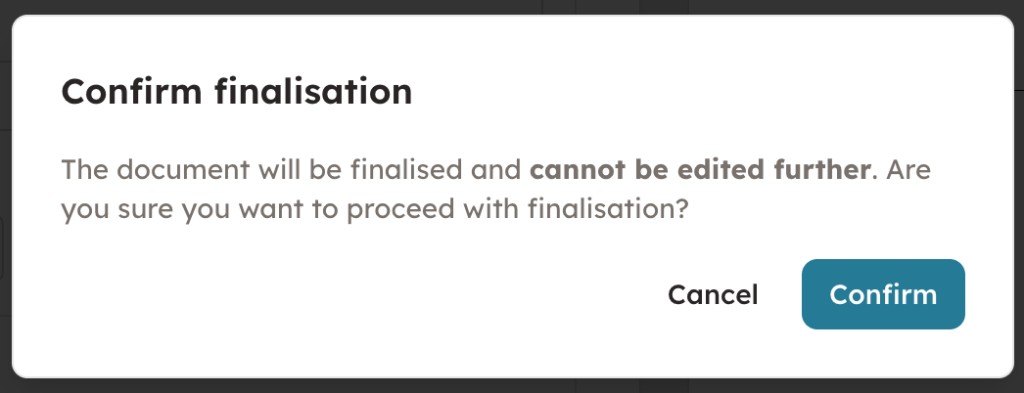
You can control this dialog with the `finalization` object when creating or updating a builder session.
How to use:
1. Create a builder session with a `finalization` object in `POST /api/builder/sessions` ([endpoint docs](/embed-api/openapi/builder/createbuildersession)), or update an existing session via `PATCH /api/builder/sessions/{session_id}` ([endpoint docs](/embed-api/openapi/builder/updatebuildersession)).
2. Set `confirmation_enabled` to control whether the confirmation dialog is shown before finalization.
3. Optionally set `confirmation_text` to replace the default message with your own. HTML is supported with the allowed tags `strong`, `b`, and `wbr`. When omitted, the default confirmation copy is used.
```json
{
"finalization": {
"confirmation_enabled": true,
"confirmation_text": "Please review carefully. This action cannot be undone."
}
}
```
When trial mode is enabled (`trial` is not `null`), `finalization` settings are ignored.
Set `finalization` to `null` via `PATCH /api/builder/sessions/{session_id}` to clear previously set finalization settings and restore the default dialog.
### Duplication
A common business need is to draft a finalized document, and later create a very similar new document with only minor value changes.
Instead of starting from scratch, you can implement this as a duplication flow with session export and import.
Typical usage:
1. End-user finalizes the original document.
2. Your backend exports the builder session with `GET /api/builder/sessions/{session_id}/export`.
3. You store the ZIP archive in your own storage.
4. When the end-user clicks "Duplicate", your backend imports the archive with `POST /api/builder/sessions/import` and creates a new builder session.
5. You redirect the end-user to the new session URL and they adjust only the values that differ.
```mermaid
sequenceDiagram
participant User as End-user
participant App as Integrator backend
participant API as Docue API
participant Storage as Integrator storage
Note over User,App: Original document has been finalized
App ->> API: GET /api/builder/sessions/{session_id}/export (X-Participant)
API -->> App: ZIP archive
App ->> Storage: Save ZIP archive
Note over User,App: Later, end-user wants to duplicate
User ->> App: Duplicate document
App ->> Storage: Load ZIP archive
App ->> API: POST /api/builder/sessions/import (ZIP + handlers)
API -->> App: New session id + redirect url
App -->> User: Redirect to new builder session
```
Important behavior:
- Import always creates a completely new builder session.
- The original exported session remains unchanged.
- Handlers are integration-specific and must be provided again on import.
## White-labeling
You can upload your logo using the [Customer Portal](https://api.builder.docue.com/customer), and it will be displayed in the Template Browser and Builder UIs for all sessions.
## Pricing
The Embed API is priced per finalized contract. A transaction is counted when a builder session is finalized for the first time. Finalization typically happens when the end-user completes the document in the Builder UI, but it can also be triggered via the API. The transaction cost may vary depending on the template used.
If a session is unfinalized and then finalized again, no additional transaction is charged. Each builder session is billed at most once, regardless of how many times it is finalized.
Pricing is always agreed separately as part of your account setup. For details, please contact us at [support@docue.com](mailto:support@docue.com).
## Architectural notes
Documents are stored on our servers only for the necessary duration. All Builder sessions and their related data will be completely removed from our servers once the session is deleted or completed. We do not offer long-term storage for created documents or their attachments.
We do not recognize your end users in any way. The only exception is that for collaboration features, we may require the display name or email of the end user for user experience reasons. Therefore, it is your responsibility to manage permissions for templates and documents among your end users. We provide one system-level API key to authenticate against our API, which grants access to all currently active builder sessions. The authenticated session in our UI is always restricted to one browser session or one document at a time.
### Features coming later
1. **Collaboration.** You can add multiple participants to the same Builder session, allowing them to collaborate on the document in real time.
2. **Webhooks.** Receive real-time updates to documents without the need for polling.
> If you need any of the features coming later, please don't hesitate to contact us at [support@docue.com](mailto:support@docue.com) and describe your use case.
### Update document's state and appearance using API
With [document patch api](/embed-api/openapi/builder/patchbuildersessioncontract) you can manipulate
document's state and appearance using API. Please get used to [Get contract state endpoint](/embed-api/openapi/builder/getbuildersessioncontract)
before continuing.
**Key Features**:
- **Batch Updates**: You can perform multiple operations in a single request.
- **Sequential Execution**: Operations are applied **in the order they are defined** (top to bottom).
- **Appearance Updates**: Easily customize fonts, logos, and footers.
- **Document Value Updates**: Modify contract content, such as document name and any field value.
- **Realtime updates**: If the end user has the builder UI open, all changes will be reflected in their view in real time.
#### Examples
##### Update document name
Document name functions as a file name. It appears in the builder UI and can be edited by the end-user.
Although it is not directly displayed in the document, it is used as the PDF filename when exported.
Note that this is distinct from `/value/basic/title`, which refers to the title visible on the document itself.
```http
PATCH /api/builder/sessions/{session_id}/contract
{
"operations": [
{
"op": "replace",
"path": "/document_name",
"value": "Share Purchase Agreement, Hooli Inc."
}
]
}
```
##### Update document field values
The `value` property in the state serves as the source of truth for all field values in the contract. In its simplest form, it appears as follows:
```json
{
"basic": {
"_type": "value",
"_id": "01983d68-40a7-8dd9-b97e-15ffe908ad2a",
"title": "Share Purchase Agreement"
},
"parties": [
{
"_type": "value",
"_id": "01983d68-40a7-8dd9-b97e-15ffe908ad1b",
"type": "company",
"company_name": "Docue",
"company_id": "1212",
"first_name": "Doe",
"last_name": "John",
"job_title": "CEO"
}
],
"fieldset_x": {
"_type": "value",
"_id": "01983d68-40a7-8dd9-b97e-15ffe908ad3c",
"nested_fieldset_y": {
"_type": "value",
"_id": "01983d68-40a7-8dd9-b97e-15ffe908ad3d",
"field_z": 1212
}
}
}
```
The schema of the `value` depends on the template used, and each template has a different schema.
The template defines the schema and cannot be **altered at this stage**.
The value consists of `fieldsets` and `fields`. All root-level properties are the names of fieldsets.
A fieldset is a collection of fields. It can be "repeatable," meaning it can contain multiple values;
in practice, its value is an array of objects. In the example above, the `basic` fieldset is non-repeatable,
while the `parties` fieldset is repeatable. The template can define the minimum and maximum number of
instances a fieldset can have.
A fieldset contains fields. A field is typically a single HTML element in the user interface. The type of
value depends on the field type. A field can define validation rules, such as whether the value is
required and the length of certain text.
Fieldsets can also include nested fieldsets, but only three levels of nesting are supported
(two fieldsets and one field).
With patch operations, you can replace entire fieldset values, add new fieldset instances, remove existing fieldset instances, and modify any field value.
**Tip**: If you want to add a new item at the end of the fieldset value, use the path `/value/parties/-`.
**Note**: Currently, it is not possible to replace attachments via the API. Please contact us if you need this feature.
```http
PATCH /api/builder/sessions/{session_id}/contract
{
"operations": [
// Add new party
{
"op": "add",
"path": "/value/parties/-",
"value": {
"_type": "value",
"_id": "01983d68-40a7-8dd9-b97e-15ffe908ad1f", // Generate UUIDv7 for new values
"first_name": "Doe",
"last_name": "John"
}
},
// Remove first party
{
"op": "remove",
"path": "/value/parties/0"
}
// Update name of the first party
{
"op": "replace",
"path": "/value/parties/0/first_name",
"value": "Johnny"
}
]
}
```
##### Update document appearance
Document appearance, such as typography styles, logo and footer can also be updated via API. Pass the whole appearance object at once.
```http
PATCH /api/builder/sessions/{session_id}/contract
{
"operations": [
{
"op": "replace",
"path": "/appearance",
"value": {
"logo": {
"enabled": true,
// data URI with base64 encoding, jpg, png or svg
"content": "data:image/png;base64,iVBORw0KGgoAAAANSUhEUgAAAAUAAAAFCAYAAACNbyblAAAAHElEQVQI12P4//8/w38GIAXDIBKE0DHxgljNBAAO9TXL0Y4OHwAAAABJRU5ErkJggg==",
"scale": 50 // logo size, scale from 20-100
},
"footer": {
"enabled": true,
"content": "Hooli Inc."
},
"heading1": {
"family": "lexend", // See supported fonts below
"color": "#000000",
"size": "20",
"weight": "bold",
"alignment": "center",
"transform": "uppercase"
},
"heading2": {
"family": "lexend",
"color": "#333333",
"size": "16",
"weight": "bold",
"alignment": "left",
"transform": "none"
},
"heading3": {
"family": "lexend",
"color": "#333333",
"size": "14",
"weight": "bold",
"alignment": "left",
"transform": "none"
},
"heading4": {
"family": "lexend",
"color": "#333333",
"size": "12",
"weight": "bold",
"alignment": "left",
"transform": "none"
},
"heading5": {
"family": "lexend",
"color": "#333333",
"size": "12",
"weight": "regular",
"alignment": "left",
"transform": "none"
},
"heading6": {
"family": "lexend",
"color": "#333333",
"size": "12",
"weight": "regular",
"alignment": "left",
"transform": "none"
},
"paragraph": {
"family": "lexend",
"color": "#000000",
"size": "11",
"weight": "regular",
"alignment": "justify",
"transform": "none"
},
"table": {
"family": "lexend",
"size": "10",
"color": "#000000",
"bgColor": "#ffffff",
"headerBgColor": "#f5f5f5",
"headerColor": "#000000",
"borderColorEnabled": true,
"borderColor": "#cccccc",
"alternatingRowBgColorEnabled": true,
"alternatingRowBgColor": "#fafafa"
}
}
}
]
}
```
#### Supported fronts
Currently supported fonts are:
- `arial`, `times-new-roman`, `georgia`, `eb-garamond`, `lexend`, `roboto`, `open-sans`, `montserrat`, `lato`, `poppins`, `raleway`, `anek`, `inter`
We can easily support any font available in Google Fonts. Please feel free to ask if you need a font that we are not currently offering.